Display rich text HTML outside the editor with responsive content styles
Saving HTML is only half the workflow. A published page also needs reading styles, stable image URLs and a layout that fits a phone. This guide provides a complete static HTML example and a small stylesheet; the reading page does not initialize RichTextEditor.
Separate content styles from editor controls
getHTMLCode() returns markup, not your entire application theme. Headings, lists and tables may look different when a website’s reset or typography rules apply. Use content styles on the publishing page rather than loading the editor’s toolbar theme just to display an article.
Download the starter reader stylesheet. Its selectors are scoped under .rte-reader, so they do not restyle navigation or other articles. Adjust fonts, spacing and supported classes to your product; this is a starter, not a renderer for every editor feature.
Try a complete published article
Serve the stylesheet and image from your application, then open this page through a web server. The example uses trusted demonstration content. For real documents, insert only HTML that has passed your application’s server-side publishing policy.
<!doctype html>
<html lang="en">
<head>
  <meta charset="utf-8">
  <meta name="viewport" content="width=device-width, initial-scale=1">
  <title>Published project notes</title>
  <link rel="stylesheet" href="/docs/reader.css">
  <style>body { margin: 0; padding: 24px; }</style>
</head>
<body>
<!-- Trusted demonstration HTML. Sanitize customer content on your server. -->
<article class="rte-reader">
  <h1>Project notes</h1>
  <p>A published document can keep <strong>emphasis</strong>, lists and links
     without loading an editor toolbar.</p>
  <ul><li>Keep reading styles scoped.</li><li>Use durable image URLs.</li></ul>
  <div class="rte-table-scroll" tabindex="0" role="region" aria-label="Project status table">
    <table>
      <caption>Project status</caption>
      <thead><tr><th scope="col">Task</th><th scope="col">Owner</th><th scope="col">Status</th></tr></thead>
      <tbody><tr><td>Publish the article</td><td>Content team</td><td>Ready for review</td></tr></tbody>
    </table>
  </div>
  <pre><code>const message = "A long code line should scroll inside its own block, without widening the entire page.";</code></pre>
  <figure>
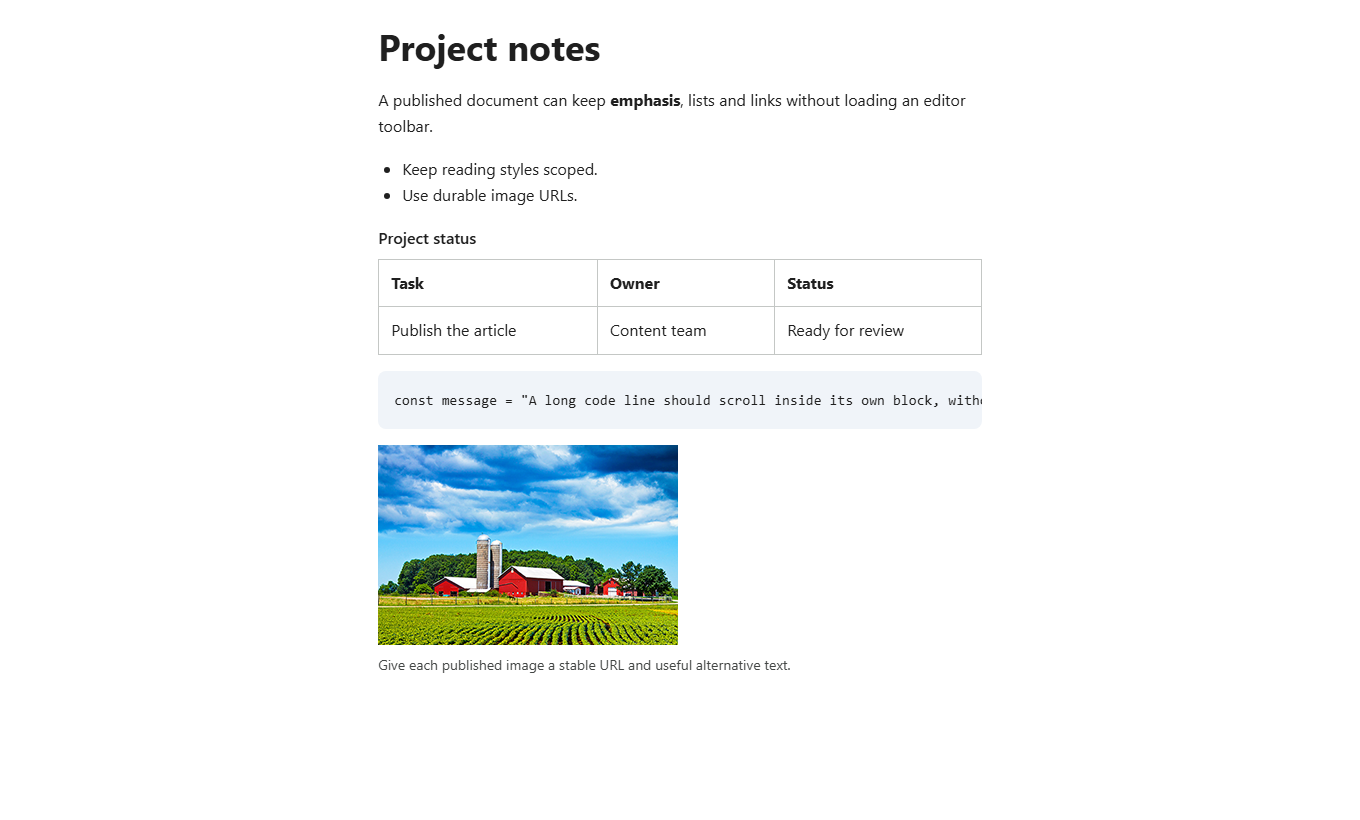
    <img src="/images/editor-image.png" width="300" height="200" alt="A farm and green fields beneath a blue sky">
    <figcaption>Give each published image a stable URL and useful alternative text.</figcaption>
  </figure>
</article>
</body>
</html>
Treat saved HTML as input, not proof of safety
Authorize document access, validate size and sanitize untrusted HTML on the server before rendering it. Saving a string in a database does not make it trusted. Use a maintained HTML sanitizer with an explicit policy for elements, attributes, styles and URL schemes.
Do not send arbitrary stored strings to innerHTML or a framework’s raw-HTML rendering option. A regular expression that removes script tags is not an HTML sanitizer. This stylesheet does not sanitize content. Retest the output after any publishing transform and do not reintroduce stripped event handlers or unsafe URLs.
Keep tables, images and code readable
The .rte-table-scroll wrapper keeps a wide table scrollable without changing its table semantics. Include the wrapper in the rendering template for tables that need it; the stylesheet does not rewrite saved HTML. Preserve captions and column headings, and make the scrolling region keyboard-focusable.
Images should have durable, authorized URLs, alternative text and dimensions. The sample scales images down on narrow screens. A downloaded HTML file does not bundle those images automatically. Code blocks scroll inside their own area; language labels alone do not load syntax highlighting.
Choose static reading or a read-only editor
Use static HTML when people only need to read a published document. If the same interface must switch back into editing, follow the read-only editor guide. Do not confuse a browser mode switch with server permissions.
Comments, tracked changes, equations, diagrams and embedded media may require a separate publishing representation or a feature-specific renderer. Decide what to publish before choosing a sanitizer policy. Do not remove an editor-only class and assume all interactive behavior will survive.
Check the publishing workflow
- Compare headings, lists, emphasis and table captions with the source document.
- Check 320px and 390px: wide tables and code should scroll locally, with no page-wide overflow.
- Confirm images still load for the intended reader, not only for the signed-in author.
- Verify that loading the stylesheet does not change your site navigation or neighboring content.
- Test your server’s sanitizer and URL policy with rejected input as well as normal articles.
Continue with getting editor HTML, server autosave, image storage and stored XSS in rich text.