Read-only rich text editor: view content and switch back to editing
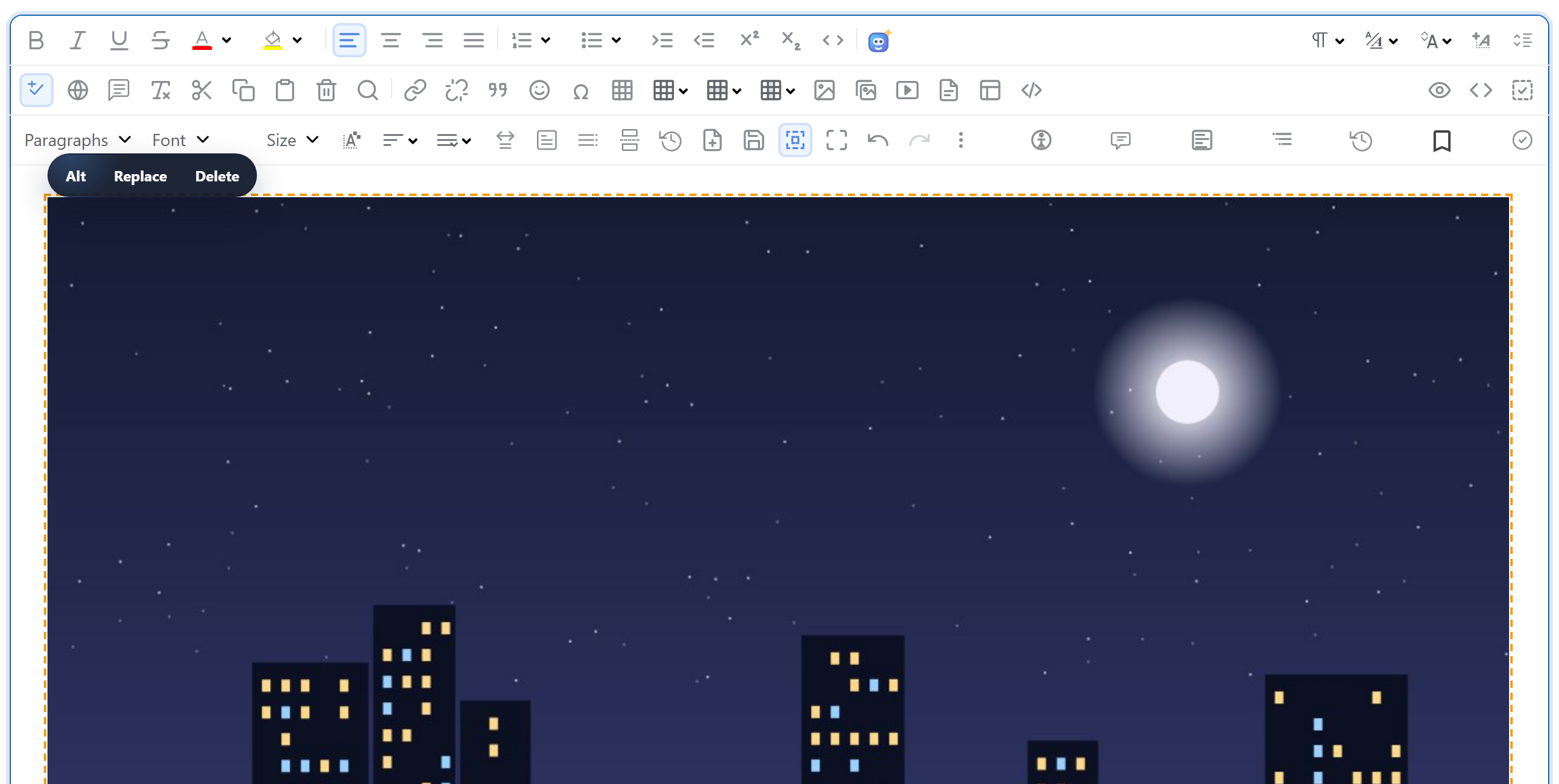
Use a read-only rich text editor for a review screen, a submitted form or a document that is temporarily locked. Keep the formatted document visible, then restore editing on the same instance when your application allows it.
Choose the right viewing mode
setReadOnly(true) changes the editor’s interaction mode. Read the state with getReadOnly() and restore editing with setReadOnly(false). You do not need a second editor or a second copy of the document.
A plain published article is a different use case: render appropriately sanitized HTML with your application’s reading styles. Loading the full editor is useful when the same screen also needs editing controls. Read-only mode does not sanitize HTML or turn the editor into an access-control system.
Run a complete read-only example
Serve the editor assets from your application and open this page through a web server. The button demonstrates switching modes; it is not a production permission check. The status and pressed state describe the actual API value rather than a separate application flag.
<link rel="stylesheet" href="/richtexteditor/rte_theme_default.css">
<script src="/richtexteditor/rte.js"></script>
<script src="/richtexteditor/plugins/all_plugins.js"></script>
<div style="max-width:100%;overflow-x:auto"><div id="editor"></div></div>
<button id="allow-editing" type="button" aria-pressed="false">Allow editing</button>
<p id="mode-status" role="status" aria-live="polite"></p>
<script>
const editor = new RichTextEditor("#editor", { toolbar: "full" });
// Trusted example content, not untrusted HTML from a request:
editor.setHTMLCode("<h2>Project notes</h2><p>Keep <strong>formatting</strong> while viewing.</p>");
editor.setReadOnly(true);
const toggle = document.getElementById("allow-editing");
const status = document.getElementById("mode-status");
function showMode() {
  const readOnly = editor.getReadOnly();
  toggle.setAttribute("aria-pressed", String(!readOnly));
  status.textContent = readOnly ? "Read-only. Text changes are locked." : "Editable.";
}
showMode();
// Demonstration only. A production app must enforce permissions on its server.
toggle.addEventListener("click", function () {
  editor.setReadOnly(!editor.getReadOnly());
  showMode();
  if (!editor.getReadOnly()) editor.focus();
});
</script>
Keep saved content and permissions separate
getHTMLCode() still reads the document in view mode. Switching modes is not a save operation and does not change your database. Keep your normal save and validation workflow separate.
A user can change browser code or call your API directly. Authorize every server-side write, reject unauthorized updates and return a conflict when the document version is stale. Only show editing controls to people who are permitted to use them. Treat loaded HTML as untrusted input and enforce your output sanitization policy before publishing it.
Integrate without recreating the editor
In React, Vue or another component framework, keep the instance in a stable reference and change its mode when the permission or workflow state changes. Recreating it for every mode change can discard selection, undo state and unsaved content.
If your app loads a document asynchronously, keep editing locked until the authorized document has loaded. Do not let a late response replace a newer draft. When a temporary lock ends, restore editing only if the user still has permission. A general read-only switch does not provide comments-only permissions, protected sections or collaborative lock management.
Check keyboard and mobile behavior
- Load the page and confirm the status is read-only.
- Try typing, deleting and pasting; the saved HTML should remain unchanged.
- Activate the button with a keyboard, edit a word, then return to view mode. Confirm the new text and formatting remain.
- Test long tables, images and code blocks at 320px and 390px. Keep overflow inside the document area rather than widening the whole page.
- Test unauthorized save requests on your server. A locked browser interface is not evidence that your endpoint rejects a write.
Continue with the related APIs
See setReadOnly(), getReadOnly() and getting HTML. Continue with reliable server autosave, form validation and image uploads.