ASP.NET Core のギャラリーフォルダー:安全に閲覧・作成する
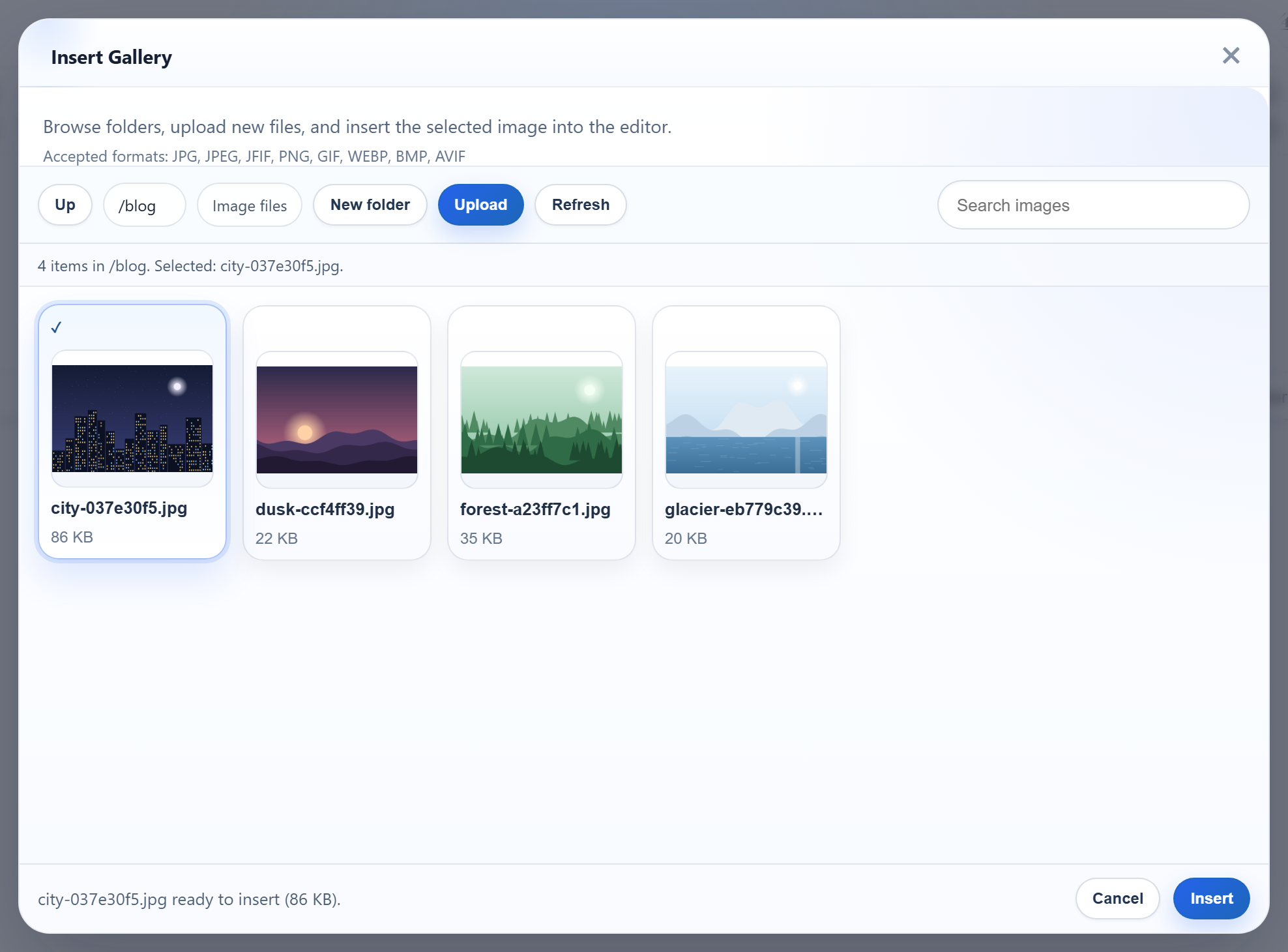
ギャラリーの「New folder」ボタンとフォルダーのタイルは、ブラウザーからサーバーにフォルダー名を送信します。ASP.NET Core では、その名前を uploads/ の外に決して出ないディスク上のパスに変換する必要があり、さらに Windows には、フォルダー名の扱いについて独自の意外な挙動があります。このページでは、フォルダー作成のルート、名前のルール、パスのチェックを、不正な入力に対して得られたレスポンスとともに紹介します。
ルート
「New folder」は、action=create-folder、開いているフォルダー、新しい名前を、multipart/form-data としてギャラリーの URL に POST します。
// POST /rte/gallery   action=create-folder, folder, name
[HttpPost("gallery")]
public IActionResult CreateFolder([FromForm(Name = "action")] string? op, [FromForm] string? folder, [FromForm] string? name) =>
    Send(RteFiles.CreateFolder(HttpContext, op, folder, name));
C# のパラメーター名は op で、[FromForm(Name = "action")] でバインドしています。これにより、MVC 自体の action ルート値と区別しています。このメソッドは親フォルダーの一覧を返すので、ダイアログは新しいフォルダーをすぐに表示します。
// POST /rte/gallery   action=create-folder, folder=<parent>, name=<new folder>
public static RteResult CreateFolder(HttpContext http, string? action, string? folder, string? name) => Run(() =>
{
    RequireSameOrigin(http.Request);
    if (action != "create-folder") throw new RteError(400, "Unknown action.");
    var root = RootFor(http);
    folder ??= "";
    var parent = Resolve(root, folder);
    if (!IsValidName(name))
        throw new RteError(400, "Use 1-64 letters, digits, spaces, '-', '_' or '.', not starting with '.'.");
    var path = Path.Combine(parent, name!);
    if (Directory.Exists(path) || File.Exists(path))
        throw new RteError(409, "A folder with that name already exists.");
    Directory.CreateDirectory(path);
    return Listing(root, folder, parent); // the parent's listing, so the new folder shows
});
Windows では Directory.Exists が大文字と小文字を区別しないため、既存の blog の隣に Blog を作ろうとすると、完全に同じ名前の場合と同じ 409 になります。
フォルダー名
// Folder names: 1-64 ASCII letters, digits, space, - _ . ; not starting with "." (no "..", no hidden
// folders). Also refused because Windows mangles them: a trailing "." or space, a leading space,
// and device names such as "con" or "nul.txt".
public static bool IsValidName(string? name) =>
    name is { Length: >= 1 and <= 64 }
    && name.All(c => char.IsAsciiLetterOrDigit(c) || c is ' ' or '-' or '_' or '.')
    && !name.StartsWith('.') && !name.StartsWith(' ')
    && !name.EndsWith('.') && !name.EndsWith(' ')
    && !WindowsDeviceNames.Contains(name.Split('.')[0]);
ASCII の英字、数字、スペース、-、_、. だけを許可することで、/、\、:、%、NUL を一度に排除できます。そのほかのルールは、Windows の名前の扱い方によるものです。
- 末尾のドットやスペース。
Path.GetFullPath(@"C:\app\uploads\photos.")はC:\app\uploads\photosを返しました。photos.として作成したフォルダーはphotosとして一覧に表示され、2 つの名前が 1 つのフォルダーを指すことになります。 - デバイス名。
con、nul、com1などは、拡張子の有無にかかわらず拒否します。name=conは 400 になります。 - 先頭のドット。これにより、
..や.gitのような隠しフォルダーを排除します。一覧でも、ルールに合わない既存のフォルダーはスキップします。
仮想フォルダーからディスク上のパスへ
ブラウザーが送信するのは常に仮想パスです。""、blog、blog/2026 などです。どのルートも、これらを同じ方法で解決します。
// A virtual folder ("", "products", "products/2026") becomes a disk path inside the root.
// Every segment must be a valid folder name, so "..", "C:", "\", "%2e%2e" and NUL never reach the disk.
static string Resolve(RteRoot root, string folder)
{
    var rootPath = Path.GetFullPath(root.Disk);
    Directory.CreateDirectory(rootPath);
    if (folder.Length == 0) return rootPath;

    var segments = folder.Split('/');
    if (!segments.All(IsValidName)) throw new RteError(400, "Invalid folder.");

    // Second line of defence: the resolved path must still be inside the root. Compare against the
    // root WITH a trailing separator, or "C:\app\uploads-old" would pass as inside "C:\app\uploads".
    var path = Path.GetFullPath(Path.Combine([rootPath, .. segments]));
    if (!path.StartsWith(Path.TrimEndingDirectorySeparator(rootPath) + Path.DirectorySeparatorChar, StringComparison.Ordinal))
        throw new RteError(400, "Invalid folder.");
    if (!Directory.Exists(path)) throw new RteError(404, "Folder not found.");
    return path;
}各セグメントは名前のルールを通過しなければならないため、..、C:、%2e%2e、先頭の / は、パスを組み立てる前に拒否されます。Path.GetFullPath の後の範囲のチェックは 2 段目の防御で、.NET ではその両方の細部が重要です。
@"C:\app\uploads-old\x.png".StartsWith(@"C:\app\uploads")はtrueです。コードのように、末尾に区切り文字を付けたルートと比較してください。Path.Combine(@"C:\app\uploads", @"C:\Windows")はC:\Windowsを返し、Path.Combine(@"C:\app\uploads", @"\Windows")は\Windowsを返します。ルートから始まる引数があると、それより前の部分はすべて捨てられます。リクエストの値をチェックせずにPath.Combineに渡してはいけません。
GetFullPath は .. を解決しますが、ジャンクションやシンボリックリンクは解決しません。サーバーにアクセスできる人が uploads/ 内に置いたジャンクションは、閲覧できてしまいます。
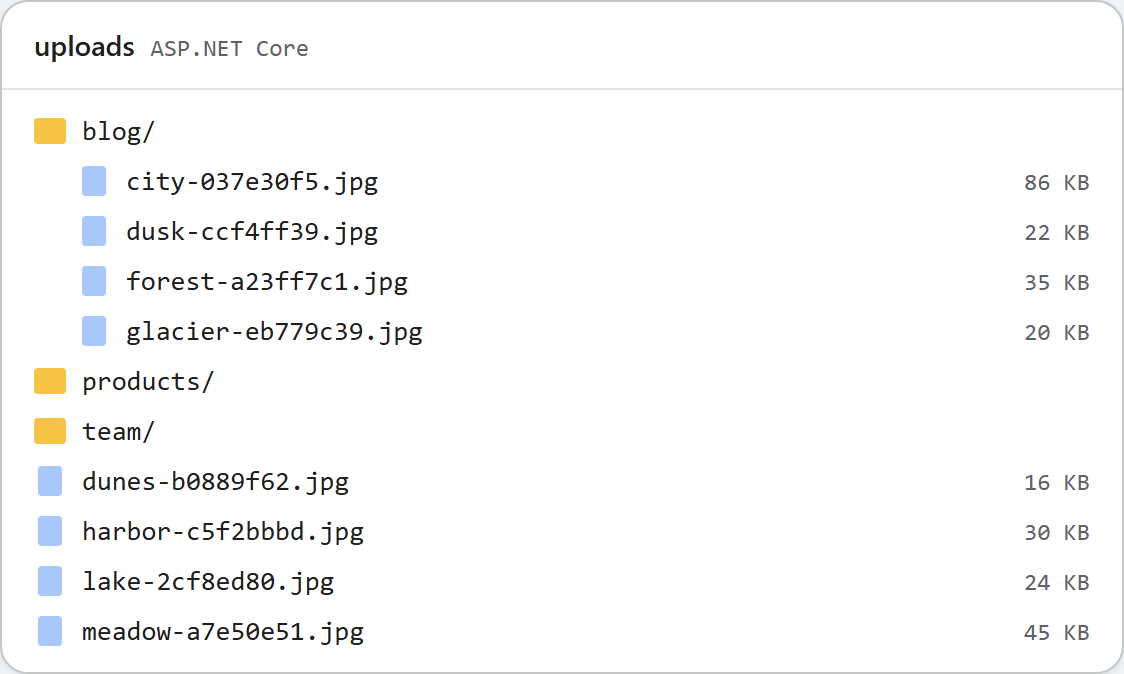
uploads/ 以下の通常のフォルダーです。テストする
このガイドのサンプルプロジェクトを dotnet run で実行します。ギャラリーで blog を開き、「New folder」をクリックします。または curl を使います。最初の作成では blog の一覧が返り、2 回目は競合になります。
curl -F "action=create-folder" -F "folder=blog" -F "name=2026" http://localhost:5302/rte/gallery
{"currentFolder":"blog","currentFolderDisplay":"/blog","parentFolder":"","folders":[{"folder":"blog/2026","name":"2026"}],"images":[...]}

curl -F "action=create-folder" -F "folder=blog" -F "name=2026" http://localhost:5302/rte/gallery
{"error":"A folder with that name already exists."}

curl -F "action=create-folder" -F "folder=" -F "name=.." http://localhost:5302/rte/gallery
{"error":"Use 1-64 letters, digits, spaces, '-', '_' or '.', not starting with '.'."}

curl "http://localhost:5302/rte/gallery?folder=..%2F.."
{"error":"Invalid folder."}

curl "http://localhost:5302/rte/gallery?folder=blog%2Fnope"
{"error":"Folder not found."}
ステータスコードは順に 200、409、400、400、404 です。最初のレスポンスの画像はここでは省略しています。ダイアログはそれを使ってフォルダーの中身を描画します。
ほかのプラットフォーム向けの同じガイド
JavaScript · PHP · MVC 5 · Web Forms