Word and Google Docs to Markdown: paste, export and check
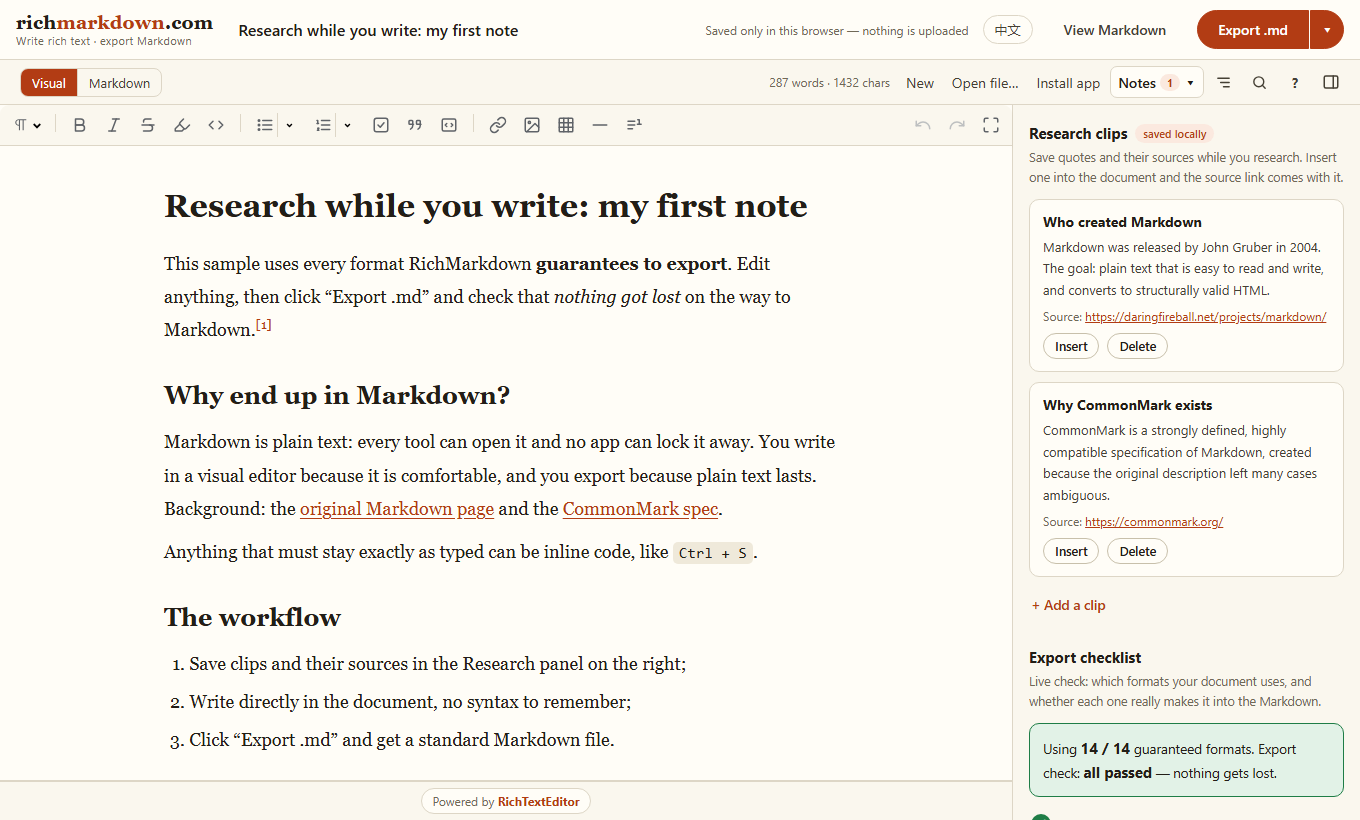
Moving a document from Word or Google Docs into a README, a knowledge base or a notes app needs more than removing bold markers. Start with rich text, export Markdown, then check the structures Markdown can represent.
Try a real writing workflow
RichMarkdown is a live app built with RichTextEditor. Paste a document into its visual editor, review the export checklist, then copy Markdown or download a .md file. It also offers Word export, local notes and research clips.
For a small API demonstration, use Markdown import and export. To build around those APIs, follow the Markdown writing app guide.
Paste rich text first
- Copy the selection in Word or Google Docs.
- Paste into the visual editor with the normal paste action. Plain-text paste intentionally removes formatting.
- Review headings, list nesting, links, quotes and tables.
- Export Markdown and inspect it before replacing the original document.
Pasting from the clipboard and opening a .docx file are different operations. File import needs a document-import workflow; do not pass a Word file's binary bytes to fromMarkdown().
Export the editor's content
// Call this after the editor is ready and the user has finished pasting.
const markdown = editor.toMarkdown();

// Save this string to your authenticated backend or offer a .md download.
// Reopen Markdown through the visual editor.
editor.fromMarkdown(markdown);
If conversion should not replace the current document, request HTML without applying it:
const previewHTML = editor.fromMarkdown(markdown, { apply: false });Review what may change
| Content | What to check |
|---|---|
| Headings and lists | Keep heading levels and nested list structure, not just visual font size. |
| Tables | Use simple rectangular tables. Markdown pipe tables cannot represent merged cells. |
| Images | Check that each URL works where the Markdown will be published. Browser previews are not portable image hosting. |
| Code | Keep inline code separate from fenced blocks. Check indentation and the fence's language label. |
| Comments and formatting | Review comments, tracked changes, colors and fonts before export. Keep the original if those are part of the record. |
Give code a clear boundary
Put a multi-line example in a code block. Use the correct language label and inspect the exported fence in the destination tool. Markdown readers differ in which languages they highlight.
```javascript
const message = "Hello";
console.log(message);
```
The language label is metadata for readers and highlighters. It is not permission to run code from a document.
Publish a copy you can verify
Open the exported file in the Markdown tool your readers will use. Check a long list, a table, an image and a code block. Keep the original rich document until the exported version has been reviewed.
If a server accepts and renders user documents, enforce authentication, authorization, upload limits and output sanitization there. See image storage, form validation and the quick start.