Add an image gallery to a rich text editor in ASP.NET Core
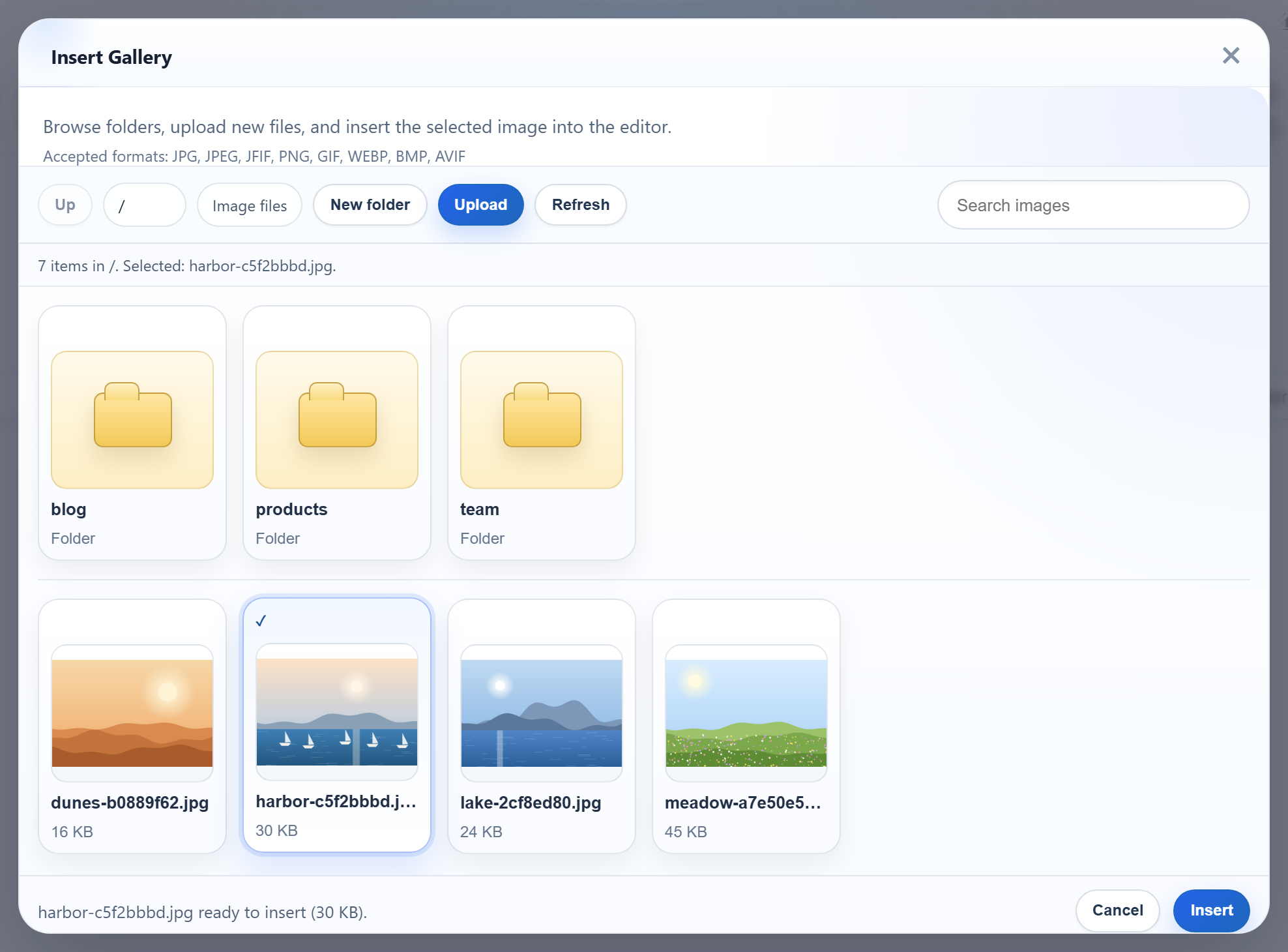
An upload button only adds files. The Insert Gallery dialog also shows what is already on the server, lets people open folders, create new ones and upload into the open folder. In ASP.NET Core the dialog needs one GET route that lists a folder as JSON, one POST route for new folders and the upload route. This page covers the listing and how the files are served.
The button and the option
The full toolbar already has the Insert Gallery button (insertgallery). Setting galleryEndpoint switches the dialog from a fixed list of preset images to your server:
var editor = new RichTextEditor("#editor", {
    toolbar: "full",
    galleryEndpoint: "/rte/gallery",
    maxUploadFileSize: 4000000 // same limit as the server, checked before the upload starts
});
The dialog appends ?folder= to that URL to list a folder, and posts action=create-folder to the same URL for the New folder button. Uploads go through rte-files.js to /rte/upload.
The route
// GET /rte/gallery?folder=products
[HttpGet("gallery")]
public IActionResult Gallery([FromQuery] string? folder) =>
    Send(RteFiles.List(HttpContext, folder));
In the Minimal API sample the same line is rte.MapGet("/gallery", (HttpContext http, string? folder) => ...). Both call RteFiles.List:
// GET /rte/gallery?folder=products
public static RteResult List(HttpContext http, string? folder) => Run(() =>
{
    var root = RootFor(http);
    folder ??= "";
    return Listing(root, folder, Resolve(root, folder));
});
Resolve turns the virtual folder into a path inside uploads/ or answers 400 or 404. Gallery folders in ASP.NET Core explains it.
The JSON the dialog reads
static RteListing Listing(RteRoot root, string folder, string disk)
{
    var dir = new DirectoryInfo(disk);
    var folders = dir.EnumerateDirectories()
        .Where(d => IsValidName(d.Name))
        .OrderBy(d => d.Name.ToLowerInvariant(), StringComparer.Ordinal)
        .Select(d => new RteFolder(folder.Length == 0 ? d.Name : folder + "/" + d.Name, d.Name))
        .ToList();
    var images = dir.EnumerateFiles()
        .Where(f => !f.Name.StartsWith('.') && Extensions.Contains(f.Extension.ToLowerInvariant()))
        .OrderBy(f => f.Name.ToLowerInvariant(), StringComparer.Ordinal)
        .Select(f => new RteImage(UrlFor(root, folder, f.Name), f.Name, folder, f.Length))
        .ToList();
    string? parent = folder.Length == 0 ? null : folder.Contains('/') ? folder[..folder.LastIndexOf('/')] : "";
    return new RteListing(folder, "/" + folder, parent, folders, images);
}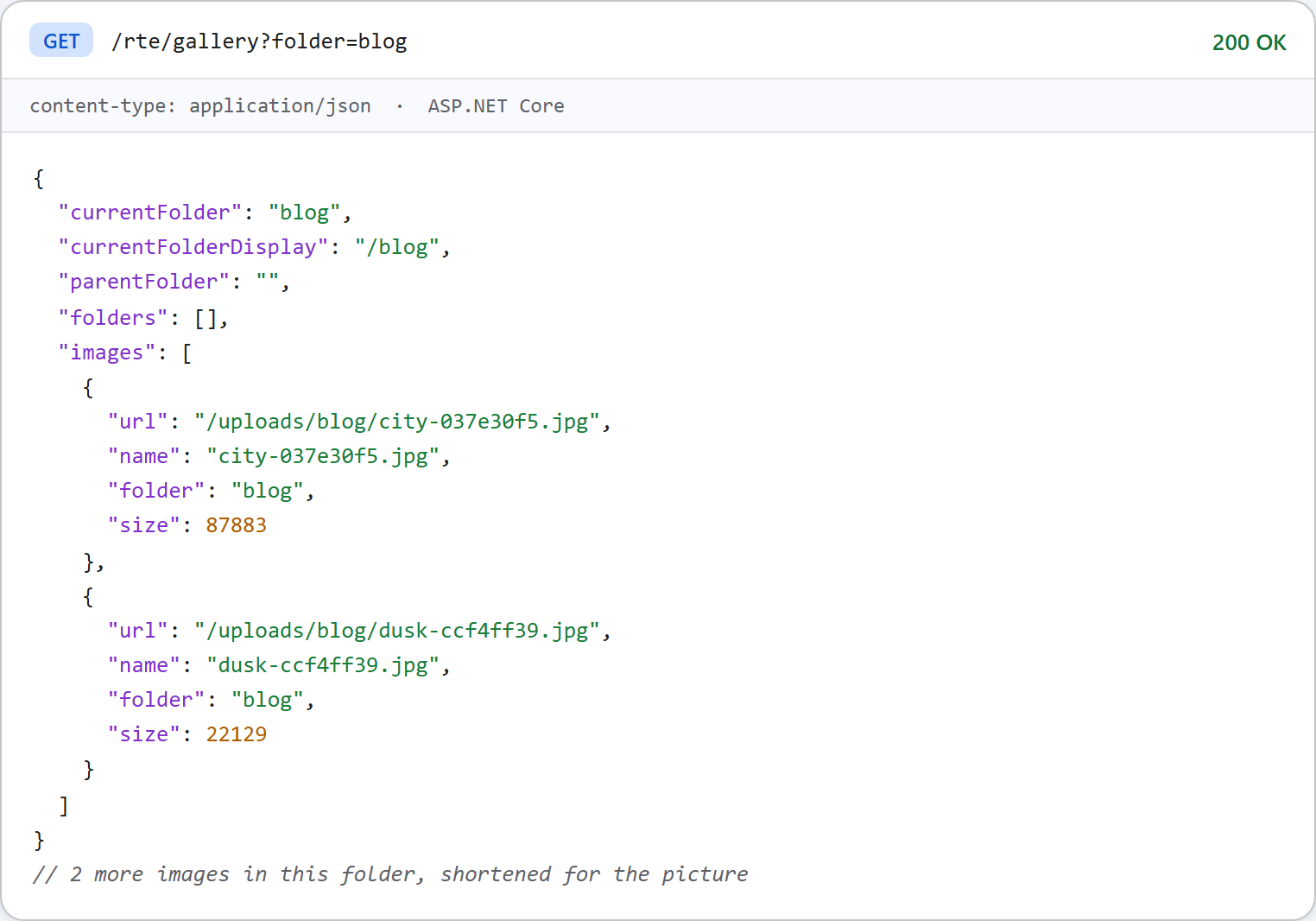
parentFolderisnullat the root, which turns off the dialog's Up button. In a folder it is the parent's virtual path,""for a top-level folder.- The properties come out camelCase because ASP.NET Core's JSON defaults are camelCase, both for
Results.Jsonand for MVC'sObjectResult. - Only the five image types are listed. Folders whose names fail the folder rules, such as
.git, are skipped. - Names are sorted by their lowercase form with an ordinal comparison.
StringComparer.OrdinalIgnoreCasecompares upper case, so it ordersa_bandaabdifferently from the browser. - Each URL segment is escaped with
Uri.EscapeDataString, so a folder calledMy photosstill gives a working URL.
Serving the pictures
The URLs point at /uploads/, served by a second UseStaticFiles call with its own content type list:
var uploads = RteFiles.UploadsFolder(app.Environment);
Directory.CreateDirectory(uploads);
app.UseStaticFiles(new StaticFileOptions
{
    FileProvider = new PhysicalFileProvider(uploads),
    RequestPath = "/uploads",
    ContentTypeProvider = new FileExtensionContentTypeProvider(new Dictionary<string, string>(StringComparer.OrdinalIgnoreCase)
    {
        [".jpg"] = "image/jpeg", [".jpeg"] = "image/jpeg", [".png"] = "image/png",
        [".gif"] = "image/gif", [".webp"] = "image/webp",
    }),
    OnPrepareResponse = ctx => ctx.Context.Response.Headers.XContentTypeOptions = "nosniff",
});
The list matters. With the default FileExtensionContentTypeProvider, an .html or .svg file in the folder would be served as text/html or image/svg+xml. Turning ServeUnknownFileTypes off, which is the default, only blocks extensions the provider does not know. With the sample's list, a probe.html and a probe.svg we put in uploads/ both returned 404.
What the dialog does today
The released editor's dialog says "Accepted formats: JPG, JPEG, JFIF, PNG, GIF, WEBP, BMP, AVIF". This server accepts five of them. A .bmp is sent, the server answers 400, and the dialog shows its own "Upload failed for pic.bmp." rather than the server's message. A file over maxUploadFileSize is refused in the browser with "big.jpg is 4.3 MB. The maximum allowed size is 3.8 MB." The dialog counts in binary megabytes.
Test it
Run the sample project for this guide with dotnet run, open http://localhost:5302 and click Insert Gallery. To see the JSON without the dialog:
curl "http://localhost:5302/rte/gallery?folder=blog%2F2026"
{"currentFolder":"blog/2026","currentFolderDisplay":"/blog/2026","parentFolder":"blog","folders":[],"images":[]}
That folder was created with the New folder button. A folder that does not exist answers 404 {"error":"Folder not found."}.
The same guide for other platforms
JavaScript · Next.js · PHP · Razor Pages · Blazor · MVC 5 · Web Forms