Gallery folders in ASP.NET Web Forms: browse and create safely
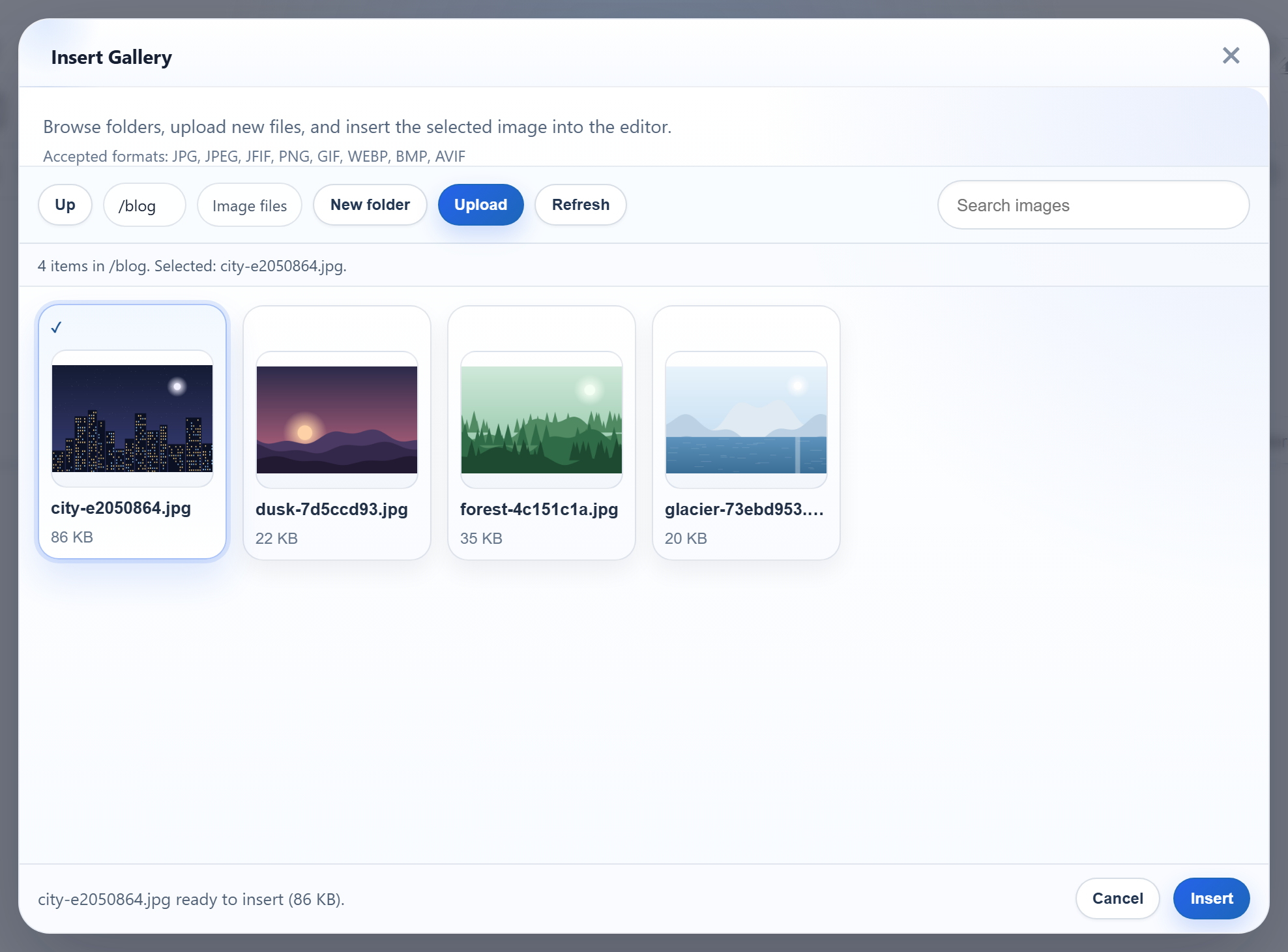
The gallery dialog has a New folder button and opens folders by name. Both send a folder name from the browser to your server, and Windows and IIS each have rules about which names work. Some names are created without complaint but can never serve an image. This page shows how the Web Forms sample turns a virtual folder like blog/2026 into a path inside uploads/, and which names it refuses on Windows.
Creating a folder
The dialog posts action=create-folder, folder (the parent) and name to /rte/gallery. The POST branch of the same IHttpHandler that serves the listing handles it, reading the values from Request.Unvalidated.Form (see the gallery handler). With the validated Request.Form, a name like <b>x produced an HTML 500 from request validation. With the unvalidated read, it gets a JSON 400 that the dialog can handle.
public static void CreateFolder(HttpContext context, string parentFolder, string name)
{
    StorageRoot root = GetRoot(context);
    string parentDir = ResolveFolder(root, parentFolder ?? "");
    string problem = NameProblem(name);
    if (problem != null)
        throw new RteException(400, problem);

    string target = Path.Combine(parentDir, name);
    if (Directory.Exists(target) || File.Exists(target))
        throw new RteException(409, "A folder named \"" + name + "\" already exists.");
    Directory.CreateDirectory(target);
}
On success the answer is the listing of the parent folder, so the new folder appears at once. An existing name gets 409. NTFS is case-insensitive, so Blog next to blog is also a 409.
From virtual folder to disk path
// Turns a virtual folder ("", "products", "products/2026") into a directory inside the
// root. Every segment must be a valid folder name, which already rules out "..", ".",
// empty segments, "\", ":", drive letters, NUL and leading "/". The resolved path is
// then checked against the root anyway, so a mistake in the rules cannot escape it.
static string ResolveFolder(StorageRoot root, string folder)
{
    if (folder.Length > 0)
    {
        foreach (string segment in folder.Split('/'))
        {
            if (!IsValidName(segment))
                throw new RteException(400, "Invalid folder.");
        }
    }

    string full = Path.GetFullPath(Path.Combine(root.Dir, folder.Replace('/', '\\')));
    if (!(full.TrimEnd('\\') + "\\").StartsWith(root.Dir, StringComparison.OrdinalIgnoreCase))
        throw new RteException(400, "Invalid folder.");
    if (!Directory.Exists(full))
        throw new RteException(404, "Folder not found.");
    return full;
}
The virtual folder never reaches the file system as typed. Every /-separated part must first pass the folder-name rules. Those rules already rule out .., ., empty parts, \, :, drive letters and NUL. The result of Path.GetFullPath is then compared with the root, which comes from Server.MapPath, so a gap in the rules still cannot leave the root. The comparison uses OrdinalIgnoreCase because Windows paths are case-insensitive. In the contract test, .., ../.., %2e%2e, C:\Windows, /etc and a/../../x all got 400.
Names Windows and IIS treat specially
// 1-64 chars of letters, digits, space, '-', '_', '.'; not starting with '.'.
// Windows extras: no trailing '.' or space (Windows silently drops them, so "a." would
// be the same folder as "a"), and no reserved device or IIS-hidden names.
public static bool IsValidName(string name)
{
    return NameProblem(name) == null;
}

static string NameProblem(string name)
{
    const string rule = "Folder names are 1-64 letters, digits, spaces, '-', '_' or '.', and cannot start with '.'.";
    if (string.IsNullOrEmpty(name) || name.Length > 64 || name[0] == '.')
        return rule;
    foreach (char c in name)
    {
        if (!char.IsLetterOrDigit(c) && c != ' ' && c != '-' && c != '_' && c != '.')
            return rule;
    }
    char last = name[name.Length - 1];
    if (last == '.' || last == ' ')
        return "Folder names cannot end with '.' or a space.";
    string lower = name.ToLowerInvariant();
    string stem = lower.Split('.')[0].Trim();
    if (Array.IndexOf(BlockedNames, lower) >= 0 || Array.IndexOf(BlockedNames, stem) >= 0)
        return "\"" + name + "\" is a reserved name on Windows or IIS.";
    return null;
}
Besides the basic rule (1 to 64 letters, digits, spaces, -, _ or ., not starting with .), three Windows and IIS rules were added after testing:
- No trailing dot or space. Microsoft's file naming rules say a name must not end with either, because the Windows APIs drop them. A folder created as
2026.would be2026on disk, while the dialog kept asking for2026.. - No device names such as
con,nulorcom1. This includes names with an extension, likeaux.txt, which Windows also treats as the device. - No IIS hidden segments. IIS request filtering refuses any URL with a segment named
bin,App_Data,App_Code,web.configand similar, at any depth. We put an image inuploads/bin/anduploads/App_Data/. Both URLs answered 404.8 although the files were there. A gallery folder namedbinwould therefore list images that never load. The sample refuses these names with"bin" is a reserved name on Windows or IIS.
Unicode letters are allowed. We created Fotos Ünïcode 2026 and uploaded into it. The image URL was /uploads/Fotos%20%C3%9Cn%C3%AFcode%202026/ein-bild-….png, and IIS served it.
Test it
With the sample project for this guide running on port 5401, create a top-level blog folder in the dialog, then:
curl -F action=create-folder -F folder=blog -F name=2026 http://localhost:5401/rte/gallery
{"currentFolder":"blog","currentFolderDisplay":"/blog","parentFolder":"","folders":[{"folder":"blog/2026","name":"2026"}],"images":[...]}

curl -F action=create-folder -F folder= -F name=bin http://localhost:5401/rte/gallery
{"error":"\"bin\" is a reserved name on Windows or IIS."}
The first is HTTP 200, with the new folder in the parent's listing. Sending it again gives 409. The second is HTTP 400. In the browser, open blog in the dialog: the path shows /blog, and Up goes back to the root.
The same guide for other platforms
JavaScript · PHP · ASP.NET Core · MVC 5