内容模板
一个对话框,提供您定义好的现成文档,例如会议记录、缺陷报告或标准信函。作者从一组实时预览中选择一个,它就会成为编辑器的内容。
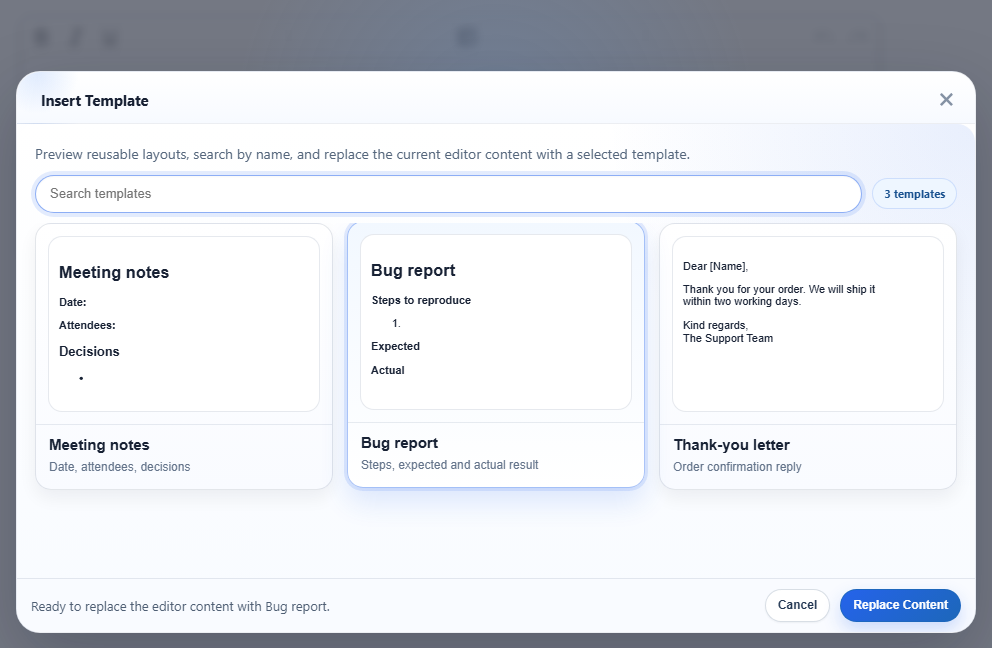
htmlTemplates 的三个模板。"Bug report" 处于选中状态;底部说明了 Replace Content 会做什么。启用
该功能由 inserttemplate.js 插件提供(也包含在 plugins/all_plugins.js 中)。工具栏项为 inserttemplate(工具提示为 "Insert Template");它已经包含在 default 和 full 工具栏中。在您设置 htmlTemplates 之前,模板列表是空的:
<link rel="stylesheet" href="/richtexteditor/rte_theme_default.css" />
<script src="/richtexteditor/rte.js"></script>
<script src="/richtexteditor/plugins/inserttemplate.js"></script>

<div id="div_editor1"><p>Draft notes go here.</p></div>
<script>
var editor1 = new RichTextEditor("#div_editor1", {
  toolbar: "custom",
  toolbar_custom: "{bold,italic,underline}|{inserttemplate}|{undo,redo}",
  htmlTemplates: [
    ["Meeting notes", "<h2>Meeting notes</h2><p><strong>Date:</strong> </p><p><strong>Attendees:</strong> </p><h3>Decisions</h3><ul><li></li></ul>", "Date, attendees, decisions"],
    { title: "Bug report", html: "<h2>Bug report</h2><p><strong>Steps to reproduce</strong></p><ol><li></li></ol><p><strong>Expected</strong></p><p><strong>Actual</strong></p>", description: "Steps, expected and actual result" },
    { title: "Thank-you letter", html: "<p>Dear [Name],</p><p>Thank you for your order. We will ship it within two working days.</p><p>Kind regards,<br>The Support Team</p>", description: "Order confirmation reply" }
  ]
});
</script>
没有模板时,对话框打开后会显示 "No templates are available."(没有可用的模板)。
选项
| 选项 | 默认值 | 作用 |
|---|---|---|
htmlTemplates | [] | 模板列表。每一项可以采用下面任意一种形式;没有 HTML 的项会被跳过。 |
text_inserttemplate | "Insert Template" | 工具栏按钮的工具提示。 |
每一项可以采用的形式:
["Title", "<p>html</p>", "description"]:一个数组;描述是可选的。{ title, html, description }:一个对象。标题也可以使用name或text,HTML 可以使用content,描述可以使用meta;如果提供了id,也会保留。"<p>html</p>":一个单纯的字符串,显示为 "Template 1"、"Template 2" 等。
描述是卡片标题下方的灰色文字。没有描述时,卡片会显示模板文本的前 80 个字符,而且各段落之间没有空格、连在一起,因此写一段简短的描述效果更好。
对话框中的其他文字来自语言包的键:text_tp_copy、text_tp_search、text_tp_replace、text_tp_select、text_tp_ready、text_tp_nomatch、text_tp_none、text_tp_count1、text_tp_countn。
使用方法
- 点击工具栏按钮,或者调用
editor1.execCommand("inserttemplate")。斜杠菜单中把它列为 "Template"。 - 搜索框按标题、描述和模板文本进行过滤。搜索 "expected" 后只剩下 "Bug report"。
- 点击一张卡片选中它,然后点击 Replace Content。双击会立即应用模板。
- 应用之后按 Ctrl+Z,会恢复应用之前的文档,包括刚刚做出的编辑。
注意事项
模板会替换整个文档;它不会插入到光标处。对话框中也是这样说明的("replace the current editor content",即替换当前的编辑器内容)。要在光标处插入一段内容,请在您自己的按钮中使用 editor.insertHTML()。
- 模板的 HTML 会像任何其他内容一样经过编辑器处理。在上面的运行中,"Bug report" 模板的输出为:
编辑器把<h2 id="bug-report">Bug report</h2> <p><b>Steps to reproduce</b></p> <ol><li></li></ol> <p><b>Expected</b></p> <p><b>Actual</b></p><strong>写成了<b>,并为标题添加了一个id。没有任何标记表明这些内容来自模板。 - 预览是在对话框中缩小绘制的模板 HTML,因此它们使用的是页面的样式,而不是编辑器的内容样式表。
- 模板保存在您页面的配置中。要从服务器加载模板,请在创建编辑器之前获取列表,并把它作为
htmlTemplates传入。
相关内容:模板演示、setHTMLCode、配置。