コンテンツテンプレート
議事録、バグ報告、定型の手紙など、あらかじめ定義した文書を選べるダイアログです。作成者がプレビューの一覧から選ぶと、その内容がエディターのコンテンツになります。
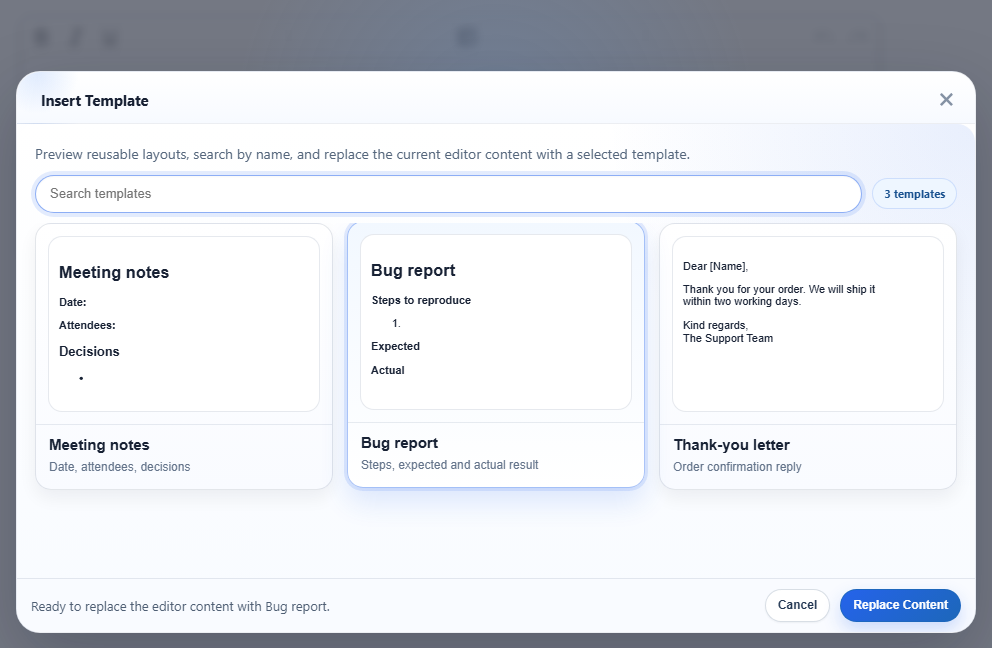
htmlTemplates で指定した 3 つのテンプレートです。「Bug report」が選択され、フッターには Replace Content の動作が説明されています。有効にする
この機能は inserttemplate.js プラグインで提供されます(plugins/all_plugins.js にも含まれます)。ツールバー項目は inserttemplate(ツールチップは「Insert Template」)で、default と full のツールバーにはすでに含まれています。htmlTemplates を設定するまで、テンプレート一覧は空です。
<link rel="stylesheet" href="/richtexteditor/rte_theme_default.css" />
<script src="/richtexteditor/rte.js"></script>
<script src="/richtexteditor/plugins/inserttemplate.js"></script>

<div id="div_editor1"><p>Draft notes go here.</p></div>
<script>
var editor1 = new RichTextEditor("#div_editor1", {
  toolbar: "custom",
  toolbar_custom: "{bold,italic,underline}|{inserttemplate}|{undo,redo}",
  htmlTemplates: [
    ["Meeting notes", "<h2>Meeting notes</h2><p><strong>Date:</strong> </p><p><strong>Attendees:</strong> </p><h3>Decisions</h3><ul><li></li></ul>", "Date, attendees, decisions"],
    { title: "Bug report", html: "<h2>Bug report</h2><p><strong>Steps to reproduce</strong></p><ol><li></li></ol><p><strong>Expected</strong></p><p><strong>Actual</strong></p>", description: "Steps, expected and actual result" },
    { title: "Thank-you letter", html: "<p>Dear [Name],</p><p>Thank you for your order. We will ship it within two working days.</p><p>Kind regards,<br>The Support Team</p>", description: "Order confirmation reply" }
  ]
});
</script>
テンプレートがない場合、ダイアログには「No templates are available.」と表示されます。
オプション
| オプション | 既定値 | 動作 |
|---|---|---|
htmlTemplates | [] | テンプレートの一覧です。各項目は下記のいずれかの形式で指定できます。HTML のない項目はスキップされます。 |
text_inserttemplate | "Insert Template" | ツールバーボタンのツールチップです。 |
項目に指定できる形式は次のとおりです。
["Title", "<p>html</p>", "description"]:配列です。説明は省略できます。{ title, html, description }:オブジェクトです。タイトルにはnameまたはtext、HTML にはcontent、説明にはmetaも使えます。idを指定した場合は保持されます。"<p>html</p>":文字列だけの形式です。「Template 1」「Template 2」のように表示されます。
説明はカードタイトルの下の灰色の行に表示されます。説明がない場合、テンプレートのテキストの先頭 80 文字を表示します。段落の間に空白を挟まず連結するため、短い説明を付けたほうが読みやすくなります。
ダイアログ内のほかの文言は、言語パックのキー text_tp_copy、text_tp_search、text_tp_replace、text_tp_select、text_tp_ready、text_tp_nomatch、text_tp_none、text_tp_count1、text_tp_countn から取得します。
使い方
- ツールバーボタンをクリックするか、
editor1.execCommand("inserttemplate")を呼び出します。スラッシュメニューでは「Template」と表示されます。 - 検索ボックスでは、タイトル、説明、テンプレート本文で絞り込めます。「expected」を検索すると「Bug report」だけが残ります。
- カードをクリックして選択し、Replace Content を押します。ダブルクリックすると、その場でテンプレートを適用します。
- 適用後に Ctrl+Z を押すと、適用直前の編集内容も含めて元の文書に戻ります。
注意点
テンプレートは文書全体を置き換えます。カーソル位置への挿入ではありません。ダイアログにも「replace the current editor content」と明記されています。カーソル位置に断片を挿入するには、独自のボタンから editor.insertHTML() を使います。
- テンプレートの HTML は、ほかのコンテンツと同じようにエディターで処理されます。上記の実行では、「Bug report」テンプレートは次のように出力されました。
エディターは<h2 id="bug-report">Bug report</h2> <p><b>Steps to reproduce</b></p> <ol><li></li></ol> <p><b>Expected</b></p> <p><b>Actual</b></p><strong>を<b>として出力し、見出しにidを付けました。テンプレートから作成したことを示す印は付きません。 - プレビューは、テンプレートの HTML をダイアログ内に小さく描画したものです。そのため、エディターのコンテンツ用スタイルシートではなく、ページのスタイルが適用されます。
- テンプレートはページの設定内に保持されます。サーバーから読み込むには、エディターを作成する前に一覧を取得し、
htmlTemplatesとして渡します。
関連情報:テンプレートのデモ、setHTMLCode、設定。