Emoji autocomplete
Type emoji the way chat apps do: :smile: becomes 😄 as soon as the closing colon is typed, and a colon followed by a few letters opens a short list of matching emoji under the caret. There is no button; it works from the keyboard.
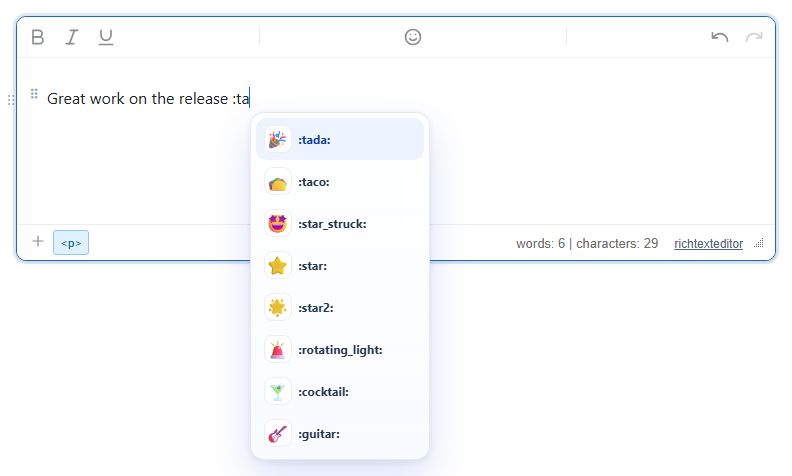
:ta. Names that start with the letters come first, then names that contain them. Enter inserted 🎉.Turn it on
The feature is the emojiautocomplete.js plugin (also in plugins/all_plugins.js). Loading it is enough: it is on by default and needs no toolbar item.
<link rel="stylesheet" href="/richtexteditor/rte_theme_default.css" />
<script src="/richtexteditor/rte.js"></script>
<script src="/richtexteditor/plugins/emojiautocomplete.js"></script>

<div id="div_editor1"><p>Great work on the release </p></div>
<script>
var editor1 = new RichTextEditor("#div_editor1", {
  toolbar: "custom",
  toolbar_custom: "{bold,italic,underline}|{insertemoji}|{undo,redo}"
});
</script>
Because all_plugins.js includes it, every page that loads all_plugins.js has emoji autocomplete on. Set emojiAutocompleteEnabled: false to turn it off.
Options
| Option | Default | What it does |
|---|---|---|
emojiAutocompleteEnabled | true | Turns both the conversion and the list on or off. |
emojiShortcodes | A built-in map of 286 names (smile, +1, tada, rocket, heart …) | The names the plugin knows, as { name: "emoji" }. Setting it replaces the built-in map. |
text_emoji_suggest | "Emoji suggestions" | Accessible name of the list. |
To keep the built-in names and add your own, copy the default map first:
var editor1 = new RichTextEditor("#div_editor1", {
  emojiShortcodes: Object.assign({}, RTE_DefaultConfig.emojiShortcodes, { shipit: "\u{1F6A2}", lgtm: "\u{1F44D}" })
});
With that editor, :shipit: gave 🚢, :smile: still gave 😄, and :lg listed :lgtm:. With emojiShortcodes: { shipit: "\u{1F6A2}" } alone, :smile: stayed as typed.
Using it
- Full code. Type
:name:. When the closing colon is typed and the name is in the map, the code is replaced by the emoji. Unknown names, like:nosuchcode:, are left as text. - The list. Type
:and at least one letter, digit,_,+or-. Up to eight matches appear; each emoji is shown once, under its first matching name. ArrowDown and ArrowUp move, Enter or Tab inserts, Escape closes the list, and a click inserts. - Undo. Ctrl+Z (Cmd+Z on a Mac) right after a conversion puts the typed code back:
:rocket:→ 🚀 →:rocket:. Any other key first makes Ctrl+Z the editor's normal undo. - The colon must start a word: it must follow a space, punctuation or the start of the text.
release:tadoes nothing;release :taopens the list. This keeps times like10:30and URLs alone. - Nothing is converted inside
<code>or<pre>.
Things to know
- The result is the emoji character in the text, nothing else. After typing
:taand Enter, thenand :rocket::<p>Great work on the release 🎉 and 🚀</p> - Names are matched in lower case. The built-in map holds GitHub-style names;
+1andthumbsupare both 👍. - The list is added to the page body (outside the editor) with the class
rte-emoji-pop, styled byrte_theme_default.css. It follows the editor's dark mode (rte-dark, orrte-auto-darkunder a dark system setting). - The plugin works on its own, without the emoji picker. The picker is for browsing; autocomplete is for people who know the name.
Related: emoji picker, configuration.