Image editor
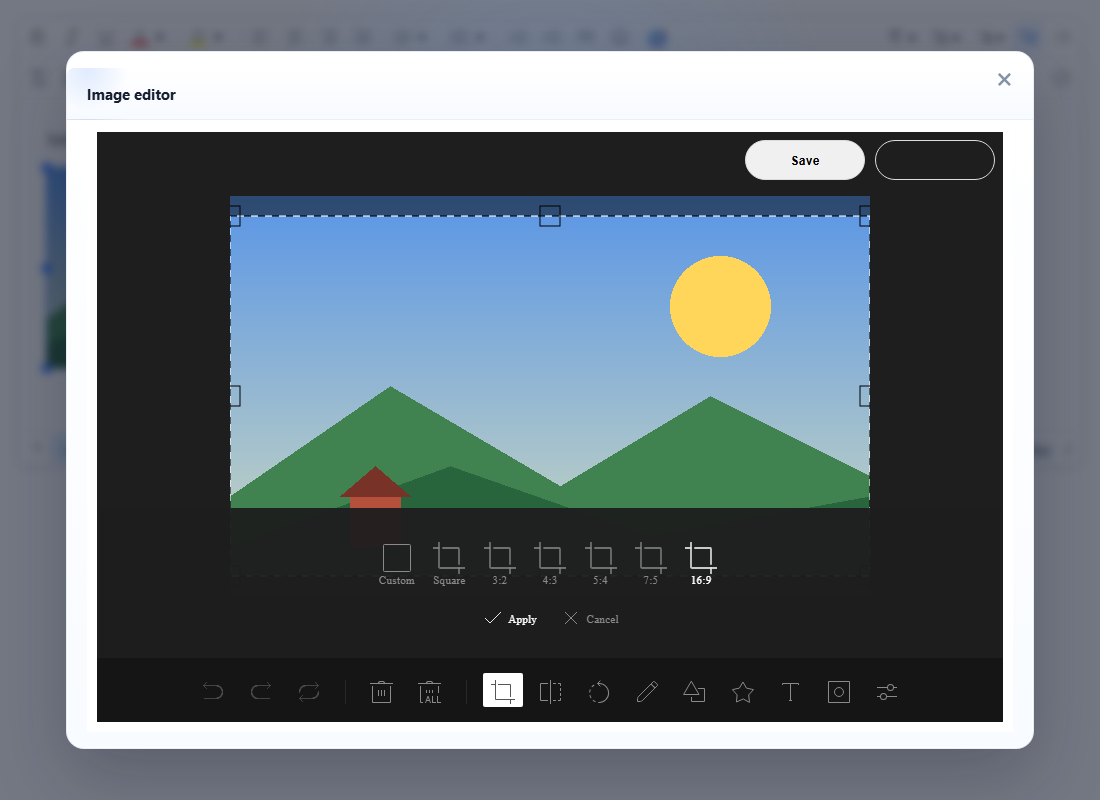
Lets the user crop, rotate, flip, draw on, annotate or filter a picture that is already in the document, without leaving the editor. On Save the edited picture goes through your upload handler and the image gets the new URL; without a handler it is embedded as a PNG data URL.
Turn it on
The feature is the imageeditor.js plugin (also in plugins/all_plugins.js). The editing tools themselves are in plugins/tui.image-editor/, which the plugin loads into the dialog only when it opens, from url_base + "/plugins/tui.image-editor/". Keep that folder next to the plugin when you deploy.
The button is imageeditor ("Image Editor"). It is in the default image toolbar (controltoolbar_IMG), which appears when the user clicks a picture, so there is nothing to add to the main toolbar. From code, select the image first and run editor.execCommand("imageeditor").
<link rel="stylesheet" href="/richtexteditor/rte_theme_default.css">
<script src="/richtexteditor/rte.js"></script>
<script src="/richtexteditor/plugins/all_plugins.js"></script>

<div id="editor"><p><img src="landscape.png" width="320" alt="Hills under a sun"></p></div>
<script>
// Called on Save with the edited picture: (file, callback(url, error)).
function uploadToServer(file, callback) {
  fetch("/upload", { method: "POST", headers: { "x-file-name": file.name }, body: file })
    .then(function (r) { return r.ok ? r.json() : Promise.reject(new Error("HTTP " + r.status)); })
    .then(function (data) { callback(data.url); })
    .catch(function (err) { callback(null, err.message); });
}
var editor = new RichTextEditor("#editor", { file_upload_handler: uploadToServer });
</script>
This is the same handler the editor uses for inserted and dropped images; see Upload files for complete server examples.
Options
The plugin has no options of its own. It reads these:
| Option | Default | What it does here |
|---|---|---|
file_upload_handler | none | Receives the edited picture on Save. If it is not set, window.rte_file_upload_handler is used. |
url_base | "/richtexteditor" | Where plugins/tui.image-editor/ is loaded from. |
controltoolbar_IMG | includes imageeditor | Remove imageeditor from it to hide the button. |
text_ie_title, text_ie_save, text_ie_saving, text_ie_uploadfailed, text_ie_nourl | English | The dialog title, the Save button and the upload messages. The language packs set them. |
Using it
The dialog takes 90% of the window. The tools along the bottom are Undo, Redo, Reset, Delete, Delete all, Crop (Custom, Square, 3:2, 4:3, 5:4, 7:5, 16:9), Flip, Rotate, Draw, Shape, Icon, Text, Mask and Filter. Save is at the top right; the box next to it shows upload errors.
What Save does depends on the upload handler:
- With a handler. The picture is passed as a
Filenamedimage-<timestamp>.pngwith typeimage/png. Save shows "Saving..." until you call back.callback(url)sets the image'ssrcto that URL and closes the dialog.callback(null, "File too large")keeps the dialog open with the edit intact and shows "Upload failed: File too large", so the user can try again. A handler that throws shows its error message the same way. - Without a handler. The image's
srcbecomes adata:image/png;base64,...URL and the dialog closes.
Only src changes. The image's width, alt and other attributes stay as they were, so a picture cropped to 16:9 keeps its old width attribute and its height follows from the new shape. The saved HTML from the run above (the id is added by the editor to every image, not by this plugin):
<p><img src="/uploads/image-1793772809490.png" width="320" alt="Hills under a sun" id="rte-fig-cl2s5j0"></p>Things to know
- The result is always PNG. A JPEG photo comes back as a PNG and is usually larger: a 640×400 JPEG returned as a 78 KB PNG in our test. If your server only accepts some extensions, allow
.png. - Without a handler the image is embedded even when
allowBase64Imagesisfalse. In 2.6.12 the image editor does not check that setting. If you turned base64 off (see Image storage), also set an upload handler, or removeimageeditorfromcontroltoolbar_IMG. - Pictures from another site need CORS. The picture is drawn on a canvas, so an image on another origin must be served with an
Access-Control-Allow-Originheader. When it is not, the picture does not appear in the dialog, and Save in 2.6.12 replaces it with an empty 300×150 PNG. Edit only images from your own domain or a CDN that sends CORS headers. - Filters. In 2.6.12 the picture in the dialog is not redrawn after a filter is ticked; the filter is applied to the saved image. Grayscale and Invert came out right in our test; Sepia gave wrong (purple) colours. Check the result after saving.
- Keyboard. The tool palette is not fully keyboard operable. The accessibility statement lists this as a known gap.
- No outside requests. Opening the editor and saving loaded only files from
plugins/tui.image-editor/on the page's own host; the plugin turns off the library's usage statistics.
Related: image editing demo, Upload files, Image storage, Image gallery.